
Framy Blog
How to Make an App Store Preview Video in 5 Minutes

Co-founder, Framy
Learn how to make an app store preview video with a real iPhone frame — upload your screen recording, pick the right ratio, and export MP4 free with no watermark.
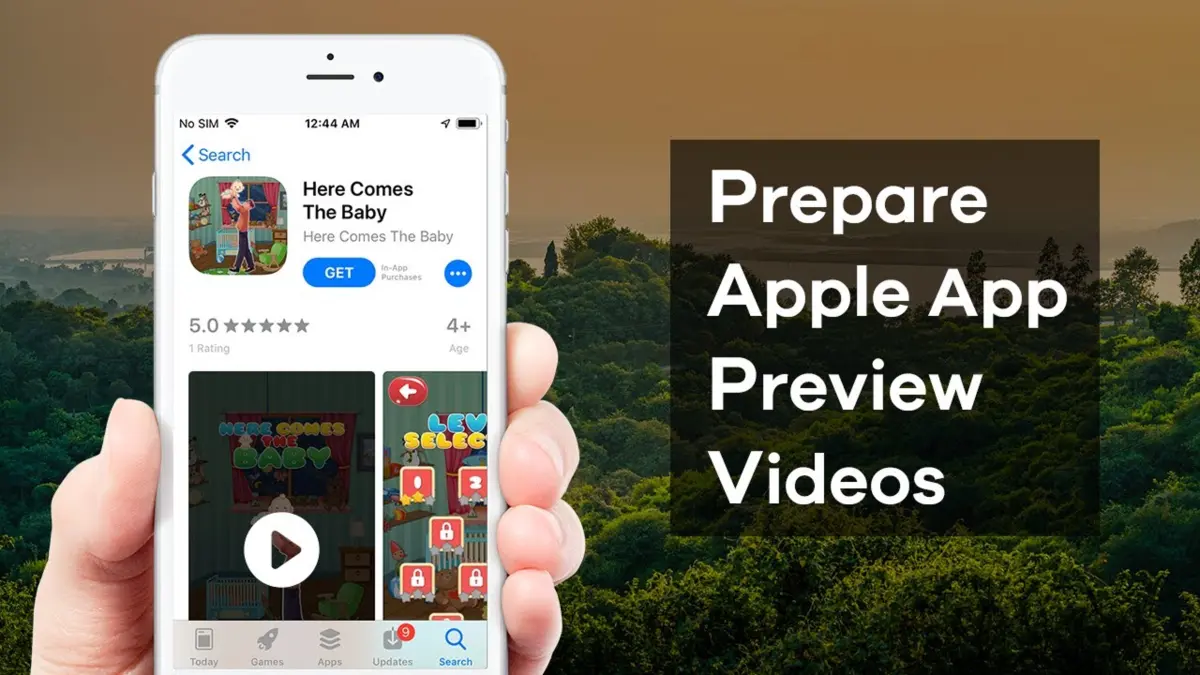
Apple’s App Store preview slot is one of the highest-leverage assets on your listing — and one of the easiest to get wrong with a bare screen capture. This guide covers how to make an app store preview video that looks native: your app demo inside a realistic iPhone frame, exported as MP4.
Why frame your App Store preview
Viewers expect to see your app inside a device. A raw recording floating on a white background reads unfinished. An app preview with a proper iPhone shell signals polish before the first tap.
What Apple expects
Preview videos should showcase core value quickly — usually 15–30 seconds of your best flows. Capture onboarding, a hero feature, or a “magic moment” users remember.
Framy does not replace screen recording; it handles the framing step after you already have the capture.
Step-by-step workflow
1. Record your app flow
Use the iOS Simulator, a physical device via QuickTime, or your preferred recorder. Export MP4 or MOV.
2. Open the preview maker
Use Framy’s App Store preview video maker and upload your file.
3. Pick your iPhone and ratio
Choose the model your audience uses. Set 9:16 portrait for most iPhone preview slots, or 16:9 for landscape hero clips.
4. Export clean MP4
Download High quality with no watermark during early access. Upload the file to App Store Connect.
Checklist before you submit
- First three seconds show your strongest feature
- On-screen text in the recording is readable at phone size
- Audio (if any) is intentional — mute UI sounds if noisy
- File meets Connect size and duration limits for your locale
Framy vs a general video editor
After Effects and Premiere can composite device frames, but the setup time kills momentum for indie teams. A focused iPhone video mockup maker that wraps recordings in one step keeps you shipping listings instead of learning motion graphics.
Related reading
See the iPhone frame and App Store video size guide for ratio and resolution details.