
Framy Blog
How to Convert a Screen Recording to Vertical Video

Co-founder, Framy
Convert a screen recording to vertical video for Reels, TikTok, and Shorts — reframe a horizontal capture into a 9:16 iPhone shell and export a clean MP4 free.
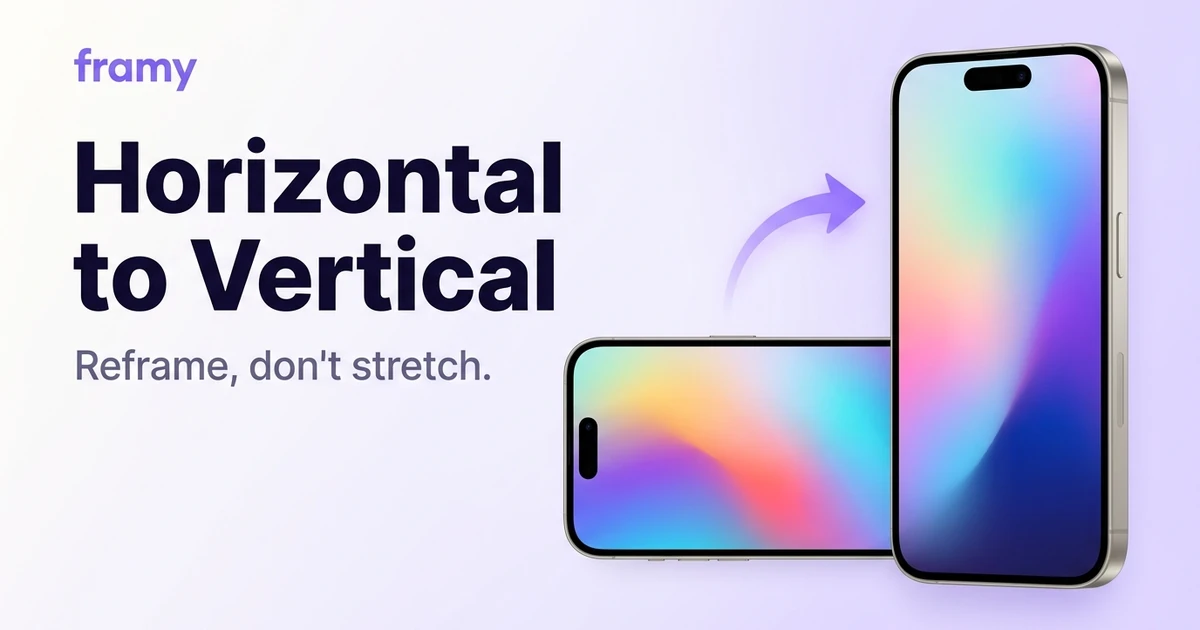
You recorded your app horizontally, and now every social platform wants vertical. Instead of re-recording, you can convert a screen recording to vertical video by reframing it into a 9:16 canvas. This guide shows the clean way to do it — with an iPhone frame so the result looks intentional, not stretched.
Why not just stretch it?
Stretching a horizontal video to fill a vertical frame distorts everything — squashed faces, warped UI. Never do it. The right approach is to place the horizontal clip inside a taller canvas and use the empty space deliberately, with a background and, for app demos, a device frame.
The vertical target
Social vertical is 9:16, 1080 × 1920. That's your output regardless of how the source was recorded.
Step 1: Open the editor
Go to the Framy editor and drop in your horizontal recording. It lands inside an iPhone frame on the canvas.
Step 2: Set the canvas to 9:16
Switch the canvas ratio to 9:16. Your framed clip now sits inside a vertical space with room above and below.
<!-- TODO: restore in-body image alt="A horizontal recording reframed into a 9:16 vertical canvas in Framy" (missing /blog-media/convert-screen-recording-to-vertical/vertical-reframe.webp) -->Step 3: Use the empty space
Fill the top and bottom margins with a solid color or gradient. This is where a vertical conversion goes from awkward to polished — the background makes the composition look designed. You can also place the phone higher or lower to leave room for a caption.
Step 4: Export vertical MP4
Export High quality MP4, no watermark. The clip is now a clean 9:16 ready for Reels, TikTok, and Shorts.
Tips
- Keep the phone large enough that UI stays readable.
- Contrast the background with the app so the frame pops.
- Leave caption room if you add text on the platform.
- One source, three platforms — the same 9:16 works for Reels, TikTok, and Shorts.
When a horizontal source is fine
If the demo is only going on a website or YouTube, keep it 16:9 — no conversion needed. Convert to vertical only for the platforms that demand it. Better still, record vertically next time to skip this step entirely. Either way, the iPhone mockup tool handles the reframe from one source file.
Bottom line
Don't stretch — reframe. Drop the horizontal clip into a 9:16 canvas, frame it in an iPhone, fill the margins with a background, and export. It's the clean way to make a horizontal recording work on vertical platforms.
Next steps
Reframe your clip with the iPhone frame for Reels tool, or read Best Aspect Ratio for App Demo Videos to plan orientation up front. More on the Framy blog.