
Framy Blog
How to Make an iPhone Duo Mockup Video (Foldable iPhone)

Co-founder, Framy
Make an iPhone Duo mockup video for the new foldable iPhone — how to frame the inner and cover screens, pick the right ratio, and export clean, free and fast.
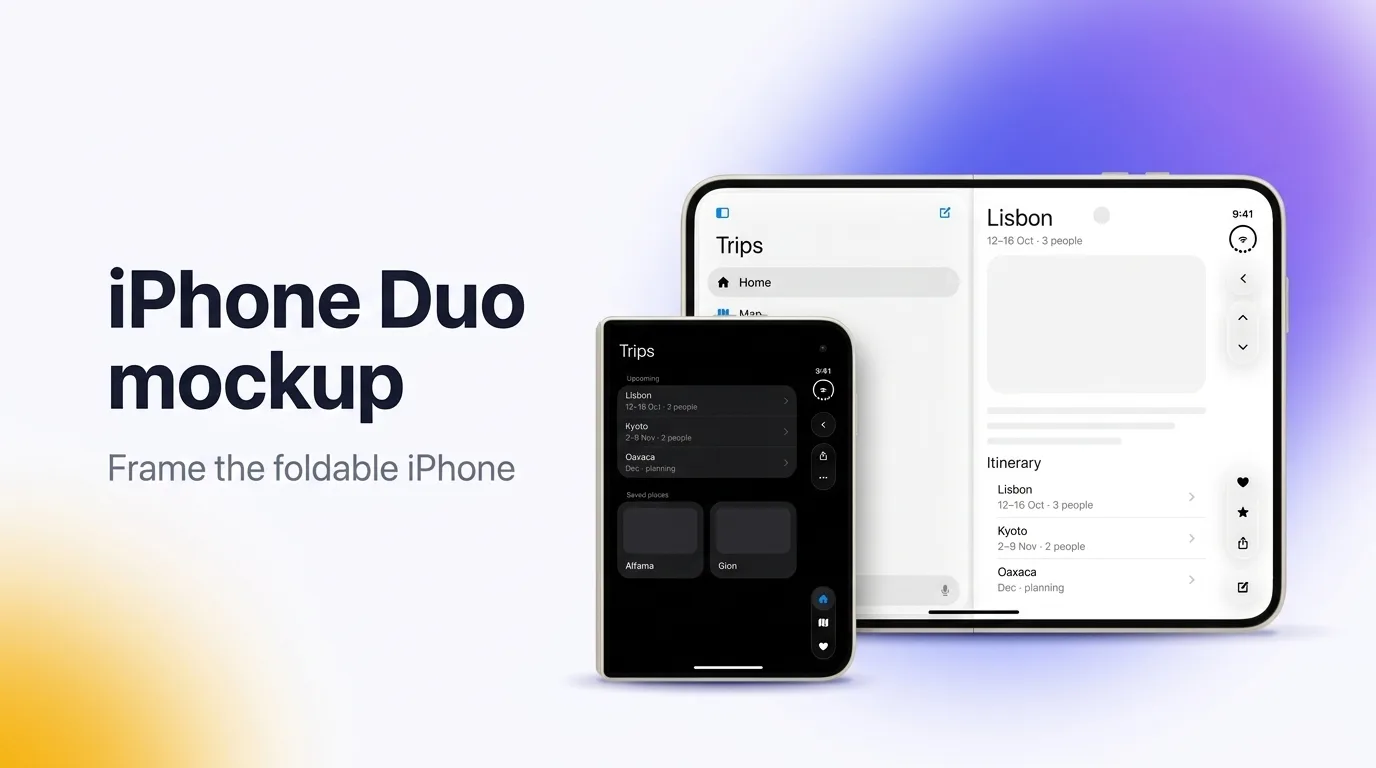
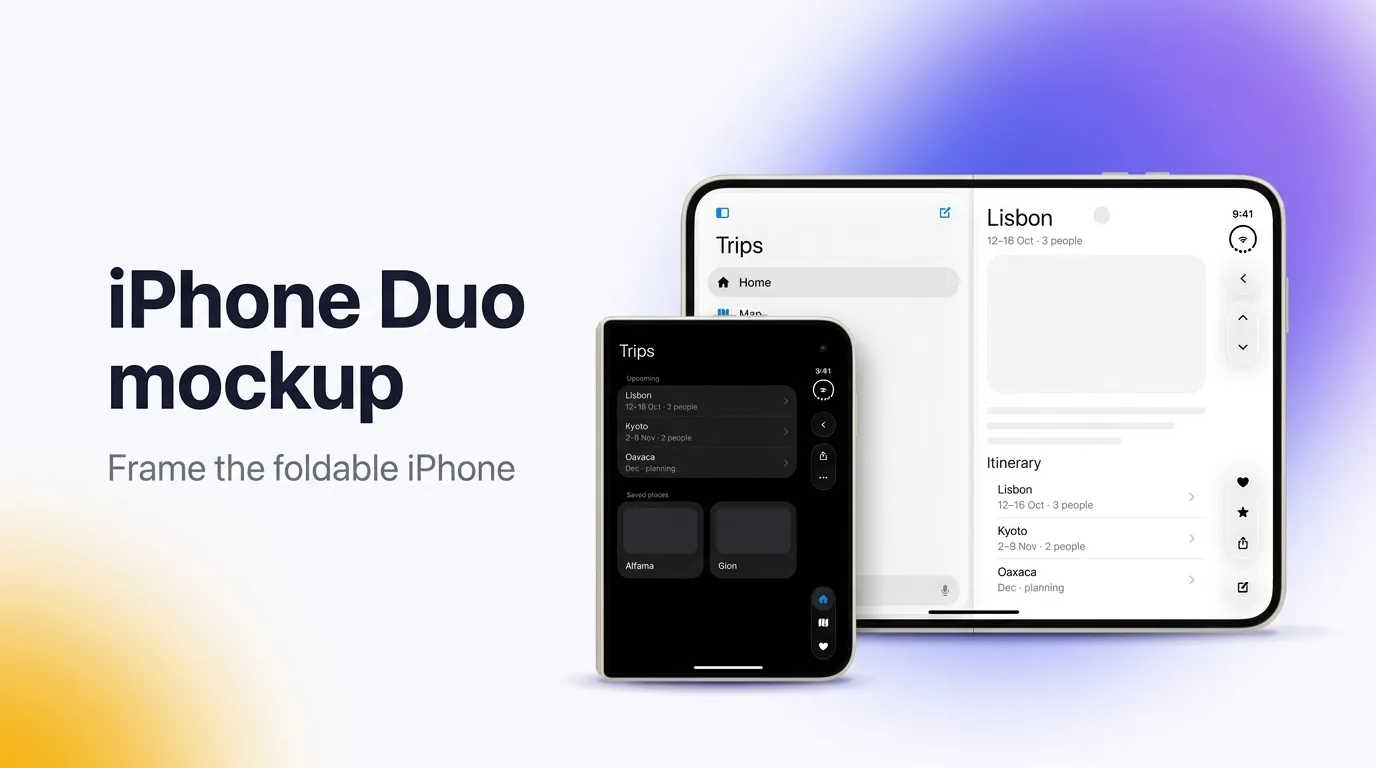
Apple announced the iPhone Duo, its first foldable iPhone, and it changes what an app demo has to show. The Duo has two screens — a tall inner display when it's open and a compact cover screen when it's closed — so a flat screen recording no longer tells the whole story. This guide walks through how to make an iPhone Duo mockup video that shows the app the way people will actually use it, and how to export it clean and free.
What makes the iPhone Duo different to frame
The Duo folds like a book. Open, you get a large near-square inner screen; closed, you get a narrow outer screen. Those are two different canvases with two different aspect ratios, and a demo that only shows one is only half the product. When you plan your recording, decide up front which screen each moment belongs on: the full experience on the inner display, the quick-glance moments on the cover.
The fold also introduces a subtle crease down the middle of the inner screen. A good mockup keeps that crease believable without letting it cut your UI in half, so keep important controls and text away from the exact center line.
Step 1: Record the right screens
Record on the device or in the simulator, and capture each screen separately:
- Inner display for the main flow — the feature you most want people to see.
- Cover screen for the glanceable version — a notification, a quick action, a now-playing view.
Keep each clip short and focused on one action. You can frame and export them as separate videos, or line them up to tell a before-and-after "closed, then opened" story.
Step 2: Choose the fold state that fits the moment
The iPhone Duo mockup works in three postures, and each says something different:
- Open (landscape or upright) — the hero shot. Use it for your main feature and your App Store preview.
- Half-open (tabletop) — shows the device is a foldable at a glance. Great for a landing page hero or a launch post where the form factor is the news.
- Folded — the cover screen. Use it for notifications and quick interactions.
If you only make one, make the open view. If you're riding the launch, the half-open tabletop shot reads as "new foldable" instantly.
Step 3: Pick the ratio for where it's going
- App Store preview: frame the inner display at the proportions App Store Connect expects for the device, and confirm the current spec before you submit.
- Reels, Shorts, TikTok: a vertical 9:16 canvas with the device centered works best, even when the inner screen is squarer than a normal phone.
- Landing page or pitch deck: a wider 16:9 frame with the half-open or open device sitting on a clean background.
Step 4: Export clean — no watermark
A watermark on an App Store listing or a launch Reel looks unfinished and costs you trust. Export a clean file. Framy exports without a watermark on the free tier, which is exactly what a public listing or a launch post needs.
How to make one
- Record your best 15–30 second flow on the iPhone Duo — inner screen, cover screen, or both
- Trim to the single core action
- Open the iPhone Duo mockup tool
- Drop in the clip, choose the fold state (open, half-open, or folded)
- Set your ratio and a background, then preview
- Export High quality MP4, no watermark
Common mistakes
- Showing only one screen. The Duo's whole point is two — demo the inner display and the cover.
- Putting key UI on the center line. The fold crease runs there; keep buttons and text clear of it.
- Reusing a stretched iPhone preview. The foldable has its own proportions; frame it natively.
- A watermarked export on a store listing or launch post.
Bottom line
The iPhone Duo rewards demos that show it as a foldable — the big inner screen for the main flow, the cover screen for the quick stuff, and a fold state that matches where the video will live. Record tight, frame it native, export clean. The framing step takes a couple of minutes and is free.
Next steps
Make yours in the iPhone Duo mockup tool, or if you just want to put a video in an iPhone mockup on a standard model, the browser tool handles it in minutes. For store-specific tips, read App Store Preview Video Best Practices. More on the Framy blog.