
Framy Blog
How to Make an Apple Search Ads Creative

Co-founder, Framy
How to make Apple Search Ads creative: the 1320x2868 custom asset size, safe framing, and a clean export. Free device frames, no watermark.
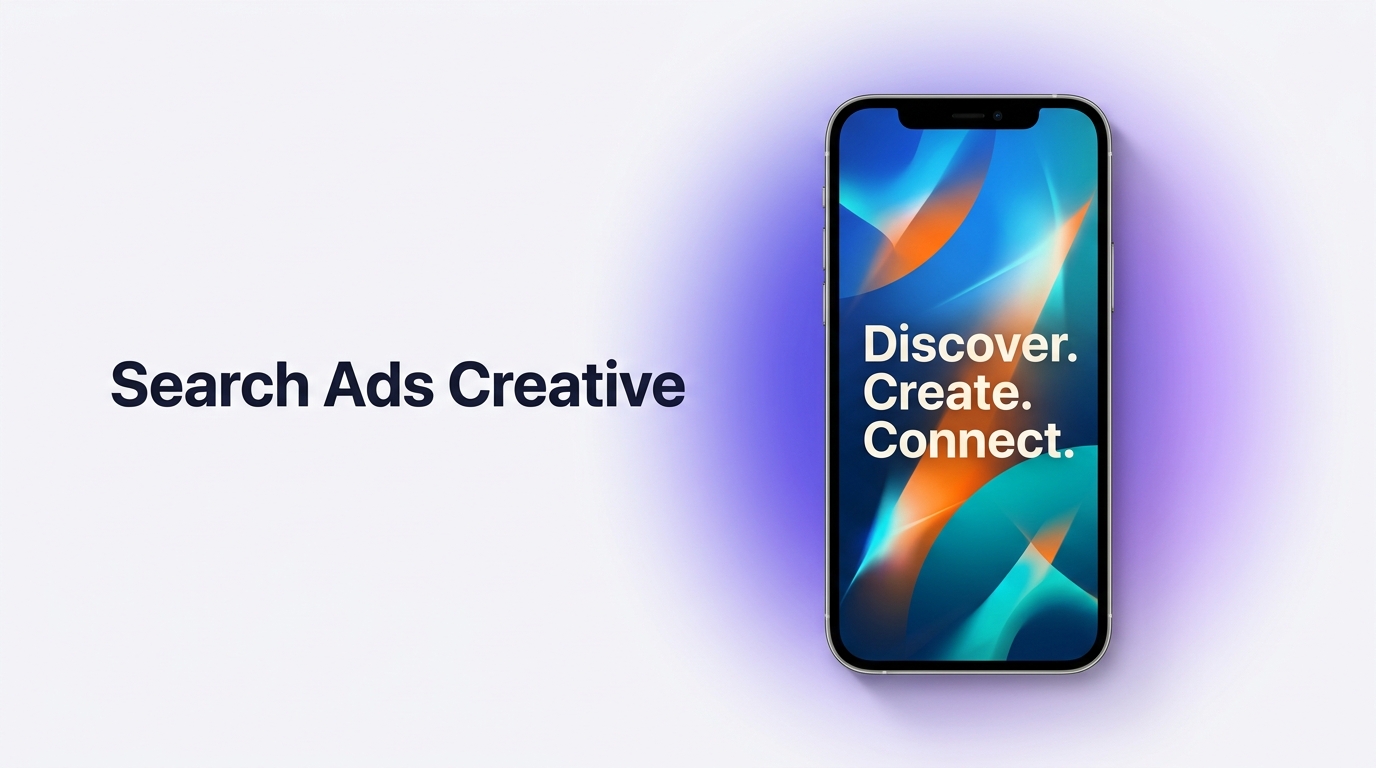
Apple Search Ads can pull custom assets straight from your App Store product page, but a purpose-built creative usually performs better. This guide covers how to make Apple Search Ads creative, including the exact custom asset size, the safe-area rules, and how to export a clean image in a browser.
How Apple Search Ads creatives work
Apple Search Ads builds ad variations from the screenshots and app preview videos on your product page by default. You can also supply custom product page assets designed specifically for ads. That is where framing and layout matter, because a creative made for a search result needs to communicate value faster than a standard listing screenshot.
The size to design for
For a full-screen iPhone custom creative, design at 1320 x 2868 px. That is a 6.9-inch class portrait resolution, and building at that size keeps your creative crisp wherever Apple renders it. Framy includes an Apple Search Ads iPhone preset at 1320 x 2868, so you can drop your screen in and export at the exact dimensions without doing the math. Apple adjusts its asset specs periodically, so confirm the current requirements in App Store Connect before you upload.
Keep the message in the safe area
A search ad appears above real results, so the important content should sit clear of the top and bottom edges where system UI and rounded corners can clip it. Put your key line and the most important part of the screen in the middle band. Keep UI text large enough to read in a small ad slot, and fill the device frame edge to edge so there is no dead white space.
How to make an Apple Search Ads creative
- Capture the single screen that best shows your core value.
- Open the Framy editor.
- Choose the Apple Search Ads iPhone preset (1320 x 2868) or set that exact pixel size.
- Pick the iPhone model that matches your audience and fill the frame edge to edge.
- Add one short, bold caption in the safe middle band if you want a headline.
- Export as PNG. Low quality is free forever; high-quality exports unlock via a bundle at $1.99 for 30 or $4.99 for 100, with no watermark ever.
- Upload it as a custom product page asset in App Store Connect.
For the deeper reference on specs and layout, see the Apple Search Ads creative.
Common mistakes
- Reusing a busy listing screenshot instead of a focused ad creative.
- Putting text near the edges where it gets clipped.
- Designing below 1320 x 2868 so the creative looks soft.
- Cramming multiple features into one asset.
- Shipping a low-resolution export for a paid placement.
Bottom line
Design one focused creative at 1320 x 2868, keep the message in the safe middle band, frame the screen in a recognizable iPhone, and export a clean high-quality PNG. A purpose-built asset almost always beats a recycled screenshot in a search result.
Next steps
Build your creative in the Framy editor, then check every placement in App Ad Creative Sizes: Meta, Google, and Apple Search Ads. If you would rather put a video in an iPhone mockup for a video ad, Framy exports MP4 too.