
Framy Blog
How to Make an iPad App Store Preview

Co-founder, Framy
How to make an iPad App Store preview: correct tablet resolution, landscape or portrait framing, and a clean MP4 or PNG export. Free, no watermark.
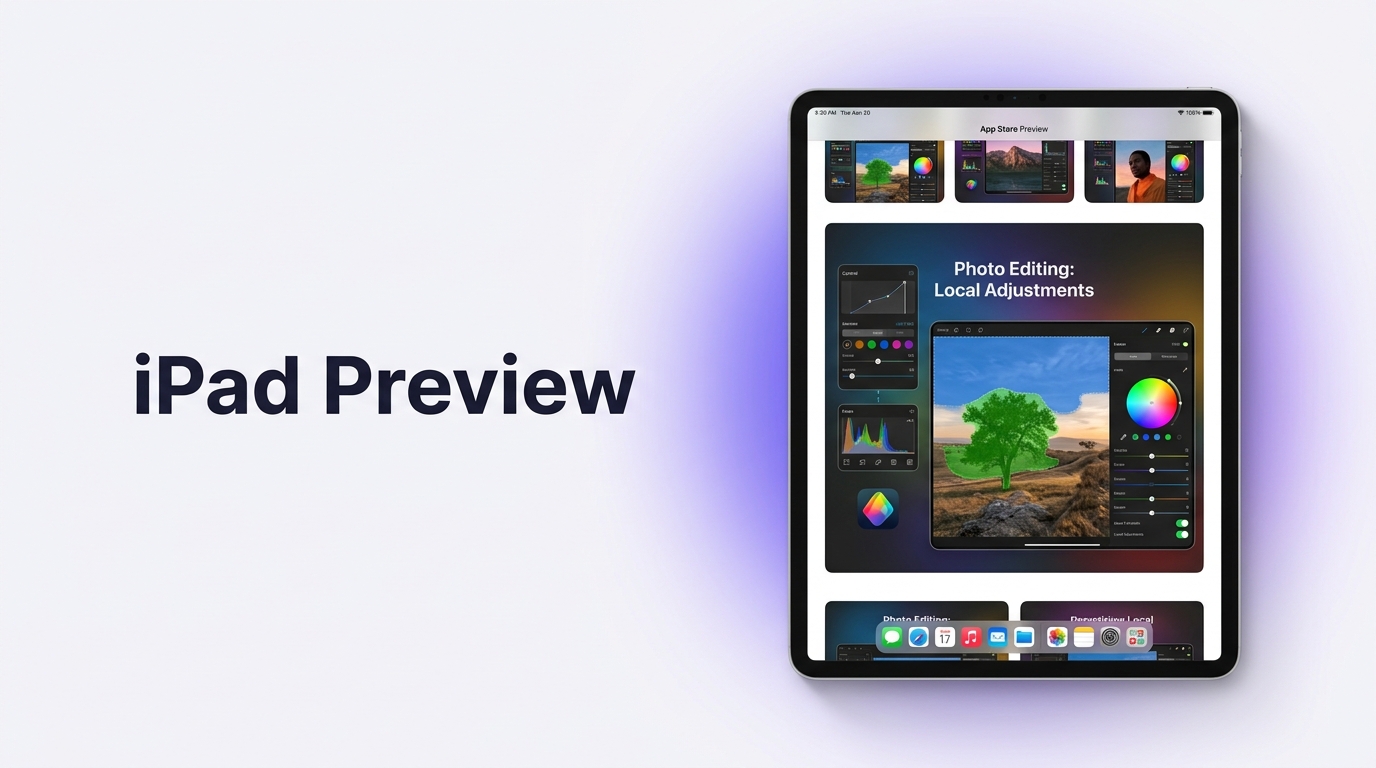
If your app runs on tablets, the App Store shows a separate set of iPad screenshots and previews, and they need to be built at tablet resolution rather than scaled up from a phone. This guide covers the iPad App Store preview from capture to export, all in a browser.
Why iPad needs its own assets
Apple treats iPad as its own device family on the product page. A phone screenshot stretched to fill a tablet slot looks soft and distorted, and it undersells an app that was designed for the larger screen. Capture your screens and recordings on an actual iPad or the iPad simulator so the layout, spacing, and text are correct for the real device.
Portrait or landscape
Choose the orientation that matches how people actually use your app. Productivity, drawing, and video apps often look best in landscape, while reading and social apps may suit portrait. Apple accepts both for iPad, so pick the one that shows your app at its strongest and stay consistent across the set. Confirm the current iPad pixel requirements in App Store Connect before you submit, since Apple updates them over time.
Frame it in a real iPad
Placing your capture inside an iPad shell makes the preview read clearly as a tablet app and adds a professional finish. Framy includes iPad frames alongside its iPhone, MacBook, iMac, and Apple Watch devices, and keeps the screen filled edge to edge with no blank margins.
How to make an iPad App Store preview
- Capture your best screens or a 15 to 30 second flow on iPad or the iPad simulator.
- Open the Framy editor and upload the file.
- Choose an iPad frame and set the orientation you want.
- Set the exact iPad pixel size or ratio, and fill the frame edge to edge.
- For a preview video, keep the core action centered and add a caption for silent playback.
- Export: video as MP4 with audio kept, screenshots as PNG. Low quality is free forever; high-quality exports up to 4K unlock via a bundle at $1.99 for 30 or $4.99 for 100, with no watermark.
- Upload in App Store Connect under the iPad device size.
For the full device reference, see the iPad mockup.
Common mistakes
- Scaling a phone capture to fill the iPad slot.
- Mixing portrait and landscape across one preview set.
- Tiny UI text that disappears at store thumbnail size.
- Leaving margins inside the frame instead of filling the screen.
- Exporting a low-resolution file for a public listing.
Bottom line
Capture at real iPad resolution, pick one orientation that flatters your app, frame it in an iPad shell, and export a clean high-quality file. Tablet assets built properly make a strong app look like it belongs on the bigger screen.
Next steps
Build your preview in the Framy editor, read the full iPad mockup, or if you are also preparing phone assets, see How to Make App Store Screenshots. You can also put a video in an iPhone mockup for the phone side of your listing.