
Framy Blog
How to Frame a Mac App Demo

Co-founder, Framy
How to make a Mac app demo video: record your app, frame it in a MacBook or iMac, size it 16:9, and export MP4 with audio. Free, no watermark.
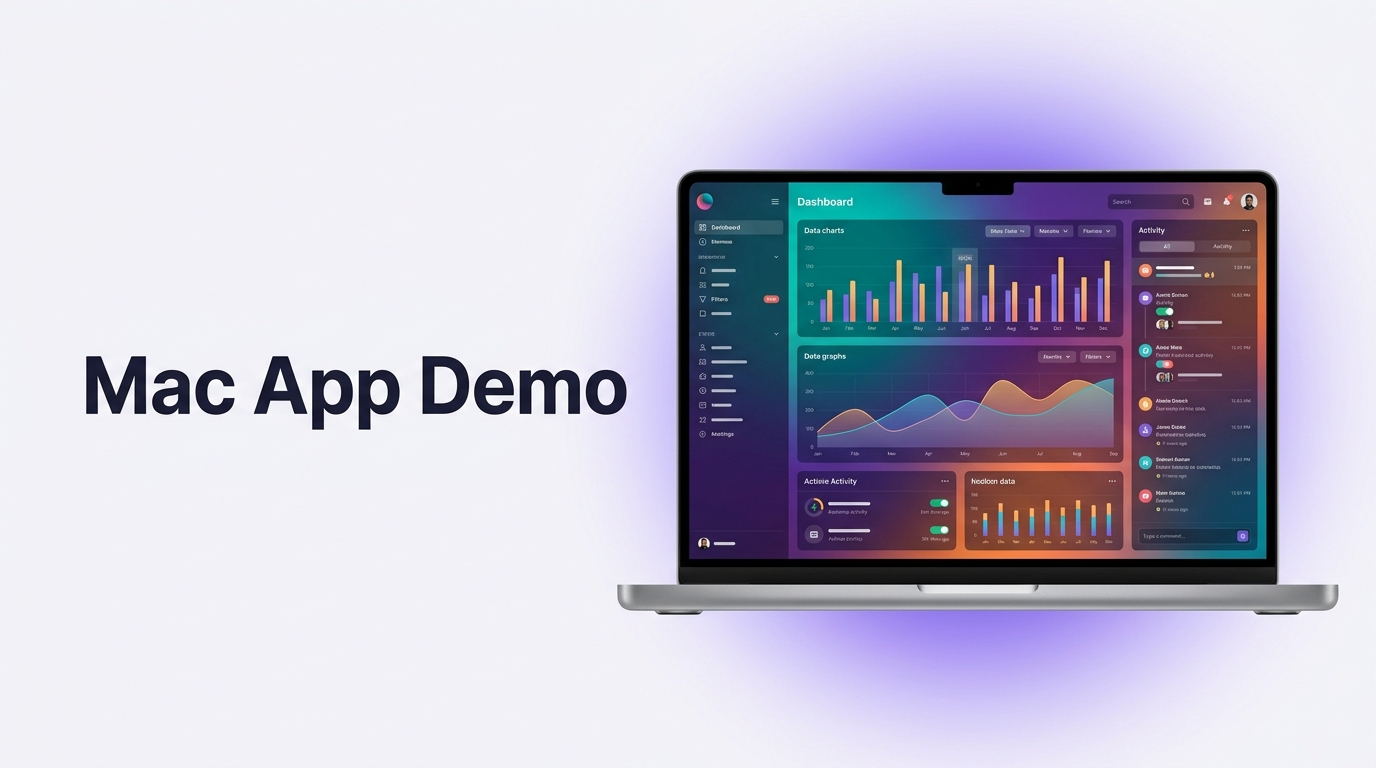
A Mac app demo looks far more credible when the screen recording sits inside a real MacBook or iMac instead of floating as a bare capture. This guide covers how to build a Mac app demo video from recording to export, all in a browser.
Record the right way
Use the built-in macOS screen recorder or your tool of choice to capture your app window at full resolution. Record the single flow that best shows your app's value, and keep it tight. For a landing page or a social post, 15 to 30 seconds is usually enough. Clean up the desktop first so there are no distracting icons or notifications in the frame.
Choose MacBook or iMac
The device you frame in sets the tone. A MacBook frame suggests a portable, everyday tool, while an iMac frame suggests a desktop workstation. Pick whichever matches how your users actually work. Framy includes both MacBook and iMac frames alongside its iPhone, iPad, and Apple Watch devices, and keeps your recording filled edge to edge inside the screen.
Size it 16:9
Mac apps are landscape, so 16:9 is the natural ratio and it fits almost everywhere: landing pages, YouTube, Google landscape ads at 1920 x 1080, and pitch decks. Keep the important action in the center so the clip survives any minor cropping when you reuse it.
How to frame a Mac app demo
- Record your best 15 to 30 second flow at full resolution with a clean desktop.
- Open the Framy editor and upload the recording.
- Choose a MacBook or iMac frame and fill the screen edge to edge.
- Set 16:9, or the exact pixel size you need such as 1920 x 1080.
- Add a short caption if the clip will autoplay without sound.
- Export as MP4 with audio kept. Low quality is free forever; high-quality exports up to 4K unlock via a bundle at $1.99 for 30 or $4.99 for 100, with no watermark ever.
For the full device reference, see the MacBook mockup guide.
Common mistakes
- Recording a cluttered desktop with notifications popping up.
- Framing a landscape Mac recording in a vertical shape, causing bars.
- Making the demo too long so viewers lose the thread.
- Tiny UI text that is unreadable once the clip is scaled down.
- Exporting a low-resolution file for a public page.
Bottom line
Record one clean flow, frame it in a MacBook or iMac, keep it 16:9 with the action centered, and export a clean MP4 with audio. A framed Mac demo looks like a finished product, not a raw capture.
Next steps
Build your demo in the Framy editor, read the full MacBook mockup guide, or if your product spans tablet too, see How to Make an iPad App Store Preview. You can also put a video in an iPhone mockup for the mobile version.