
Framy Blog
Apple HomeView Screen Size & Design Guidelines (1088×1088)

Co-founder, Framy
Apple HomeView is 1088×1088 at 220 ppi — what Apple published for the square display, widgets, CarPlay apps, and why there is no App Store screenshot slot.
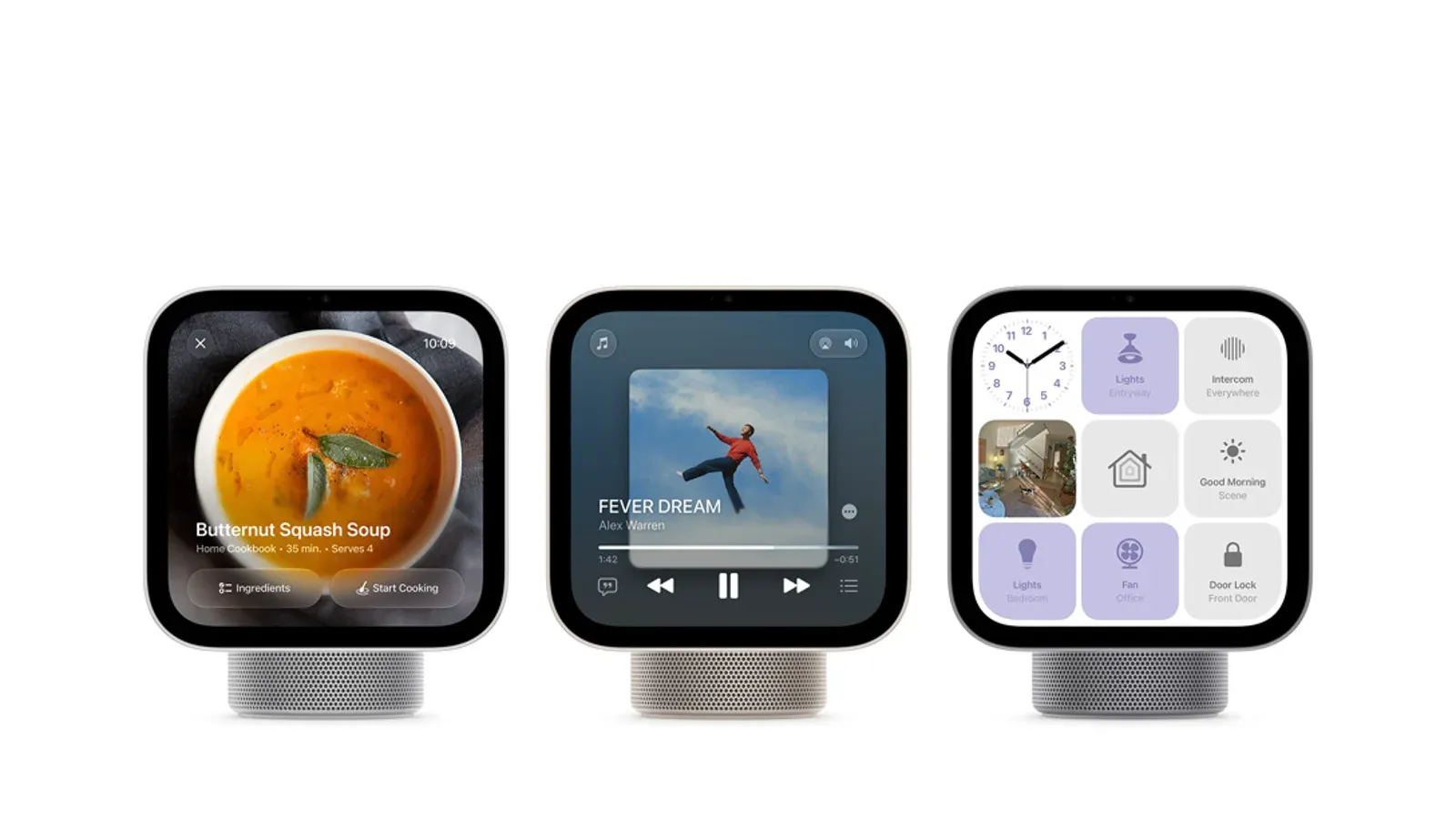
Apple HomeView is a square 7-inch Liquid Retina display. The only pixel size Apple publishes for the panel is 1088 × 1088 at 220 ppi. This guide gathers what is official, what developers can actually put on the device, and what is not in App Store Connect — so you can design and mock for HomeView without guessing.
Official display size
| Spec | Value |
|---|---|
| Marketed diagonal | 7-inch Liquid Retina |
| Measured diagonal (rounded corners) | 6.98 inches (viewable area is less) |
| Resolution | 1088 × 1088 pixels |
| Pixel density | 220 ppi |
| Aspect ratio | 1:1 (square) |
| Brightness | 0.3–500 nits, True Tone |
Source: Apple HomeView technical specifications.
There is no landscape twin. The canvas is square whether the tabletop unit sits on a counter or the wall-mounted model is on a hallway wall. Design UI, faces, and widgets for a stable square — not a phone that rotates.
Finishes for the tabletop model are Silver, Starlight, Rose Pink, and Space Gray. The wall-mounted model ships in Silver and Space Gray.
What Apple has (and has not) published for designers
Published:
- Hardware resolution and display tech (above)
- A short Widgets Human Interface Guidelines note: on HomeView, people place systemSmall widgets on the Modular face and the Home Screen; widgets share the look of iPhone small widgets
- CarPlay developer guidance: CarPlay audio and video apps also work on Apple HomeView without modifying the app
Not published (as of November 2026):
- A dedicated HomeView HIG overview page with point (pt) canvas size or safe-area insets
- App Store Connect screenshot or App Preview sizes for HomeView
- A HomeView App Store or third-party app SDK/simulator
Do not invent App Review upload sizes. Use the native 1088 × 1088 display when you need a pixel-true screen, and treat marketing mockups as product shots — not ASC assets.
How third-party content reaches HomeView
HomeView does not run a general App Store. Two paths matter for most teams:
- CarPlay audio and video apps — your existing CarPlay entitlement surfaces on HomeView while the app runs on a paired iPhone or iPad. There is no separate HomeView Xcode destination.
- Widgets — support the systemSmall family. People pick widgets already available on HomeView or from their connected iPhone/iPad and place them on Modular or Home Screen faces.
If you are shipping a HomeKit dashboard concept, a music Now Playing layout, or a kitchen-facing CarPlay video UI, design for the square first, then frame it in a real HomeView for launch visuals.
Design tips for the square
- Glanceable from across the room. Apple describes the UI as simpler at a distance and richer up close. Prefer large type, clear icons, and one primary action per view over dense phone layouts.
- Do not stretch a 9:16 phone capture into the hole and call it done. Letterboxing is honest when the content is widescreen; for HomeView-native UI, export or layout at 1:1 / 1088×1088.
- Keep critical controls off the rounded corners. The panel has rounded corners; treat the outer edge as soft, not a hard rectangle for tiny labels.
- Test contrast for day and night. The brightness range is extreme (sunlit kitchen to nightstand). Avoid large pure-white fields that glare at night.
Framy canvas preset
Framy includes an Apple HomeView canvas preset at exactly 1088 × 1088 — the native display size from Apple’s specs, not an App Store Connect upload size. Pair it with the HomeView device frame (Silver, Starlight, Rose Pink, or Space Gray) when you want a product shot or demo video.
Open the Apple HomeView mockup tool, or jump straight into the editor with HomeView selected.
Common mistakes
- Treating HomeView like an App Store device family. There is no ASC screenshot slot for it.
- Reusing tall iPhone screenshots. The ratio is wrong; the product reads as a stretched phone.
- Designing only for arm’s-length detail. HomeView is often read from a kitchen counter across the room.
- Assuming medium/large widgets appear. Official guidance points at systemSmall only on this surface.
Bottom line
The official screen size is 1088 × 1088 (1:1). Use that for native UI and mockups. Ship CarPlay audio/video or systemSmall widgets for real device reach. Skip inventing App Store screenshot sizes — Apple has not defined any for HomeView.
Next steps
- Step-by-step framing: How to make an Apple HomeView mockup
- Tool page: Apple HomeView mockup
- Related: Apple Watch app demo · iPhone Duo mockup
FAQ
What is the Apple HomeView screen size?
1088 × 1088 pixels at 220 ppi on a square 7-inch Liquid Retina display (about 6.98 inches measured with rounded corners).
Are there App Store screenshot sizes for HomeView?
No. HomeView has no App Store listing slot in App Store Connect. Screenshot and App Preview tables cover iPhone, iPad, Mac, Apple TV, Vision Pro, and Apple Watch — not HomeView.
What widget size works on HomeView?
Apple’s Widgets HIG notes that HomeView uses the small system family (systemSmall) on the Modular face and Home Screen.
Do I need a special Xcode target for HomeView apps?
For CarPlay audio and video apps, no. Apple says those apps work on HomeView without modifications; keep targeting iPhone as usual.