
Framy Blog
Christmas iPhone Mockup: Festive Cases + Seasonal Backgrounds

Co-founder, Framy
Turn your screen recording into a Christmas iPhone mockup video: festive case, holiday background, MP4 for Reels and ads. Free, no watermark.

A Christmas iPhone mockup puts your app screenshot or screen recording inside a holiday-themed iPhone case on a winter background, ready for Reels, ads, or App Store screenshots. Holiday creatives land when the frame feels festive, not when you drop a bare screenshot on a red gradient. A sculpted festive case and a matching background sell December in one glance: the holiday on the bezel and the canvas, your app on the glass.
Framy ships three Christmas iPhone frames on the 18 Pro Max screen fit, each with its own matching background, and one-tap iPhone templates in Designs that pair them. Drop in a screenshot or a screen recording and export a PNG or a Christmas iPhone mockup video in MP4. Here's how to use them without fighting Reels or store specs, and without overlapping your Halloween or Black Friday creatives.
Why a Christmas iPhone frame beats a plain bezel
A standard titanium iPhone frame reads "product demo." A festive iPhone case reads "campaign." The case carries Christmas so your UI doesn't need a sweater. Keep the screen honest (real chrome, real copy) and let the frame do the holiday work.
That split is useful for:
- Holiday app ads and Meta / Google winter creatives
- Instagram Reels / TikTok posts that need an iPhone in-shot without filming a desk
- App Store or landing screenshots for a limited-time Christmas feature or gift promo
- Founder posts and Product Hunt launches around December
Christmas iPhone mockup: frames, backgrounds, templates
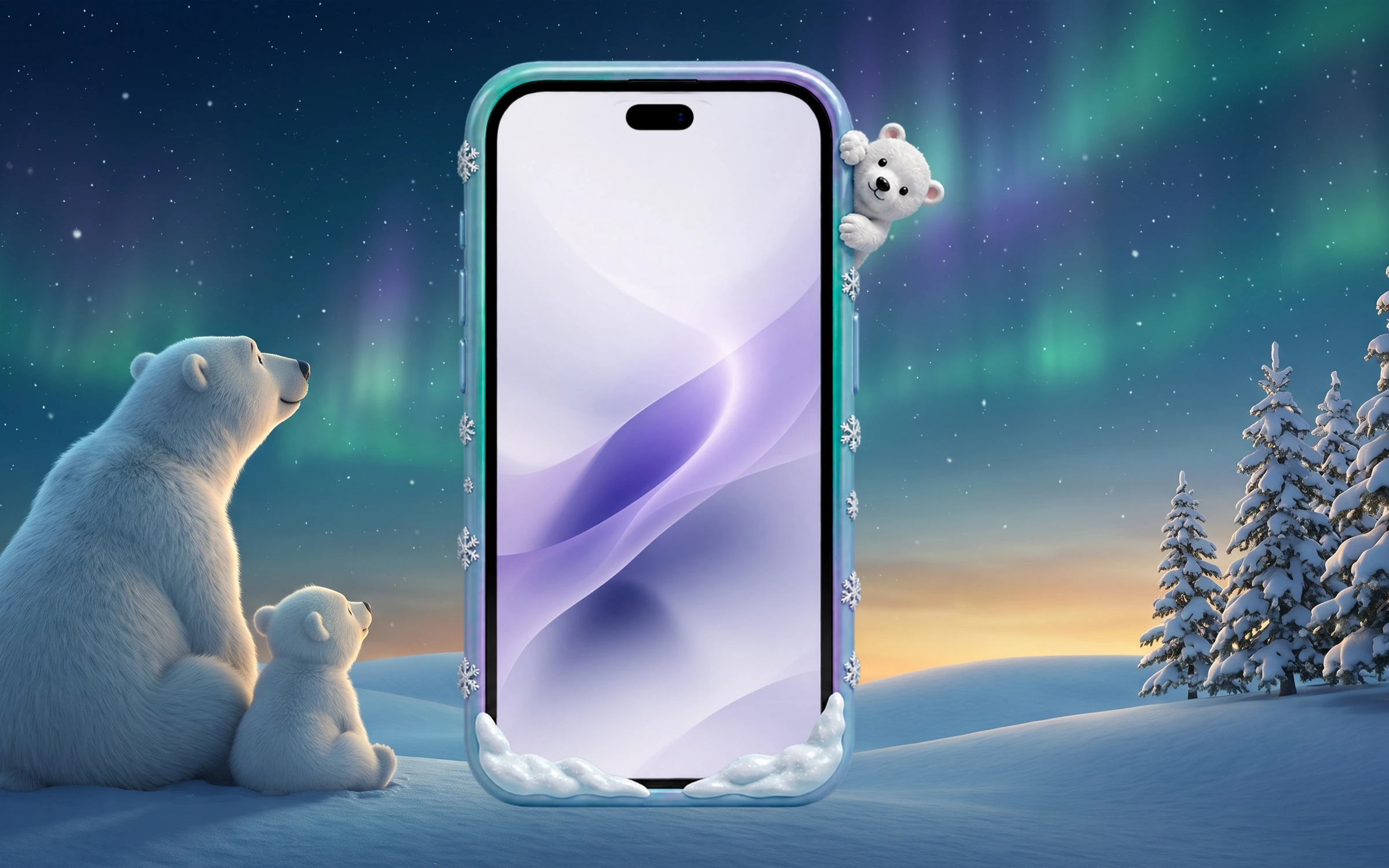
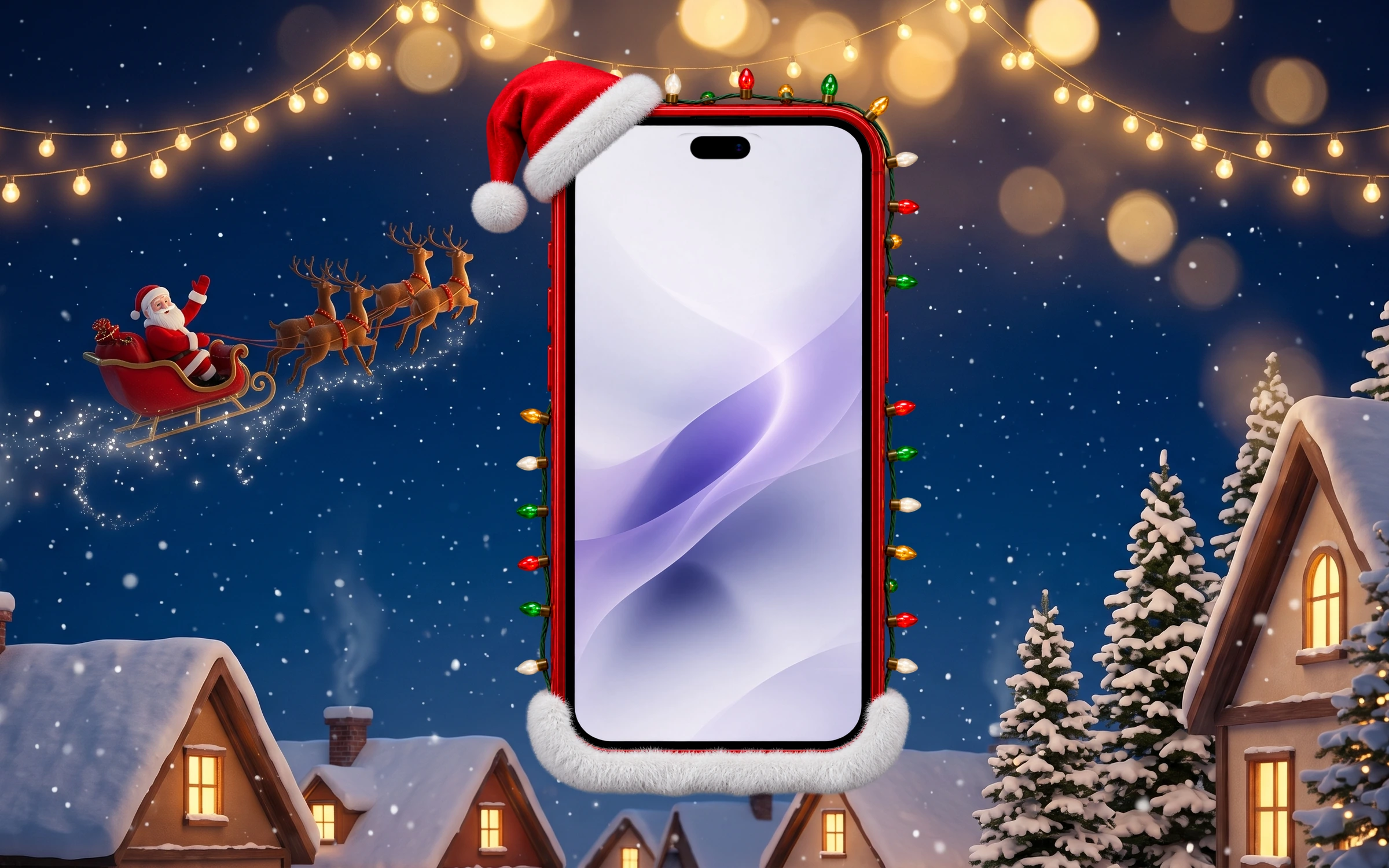
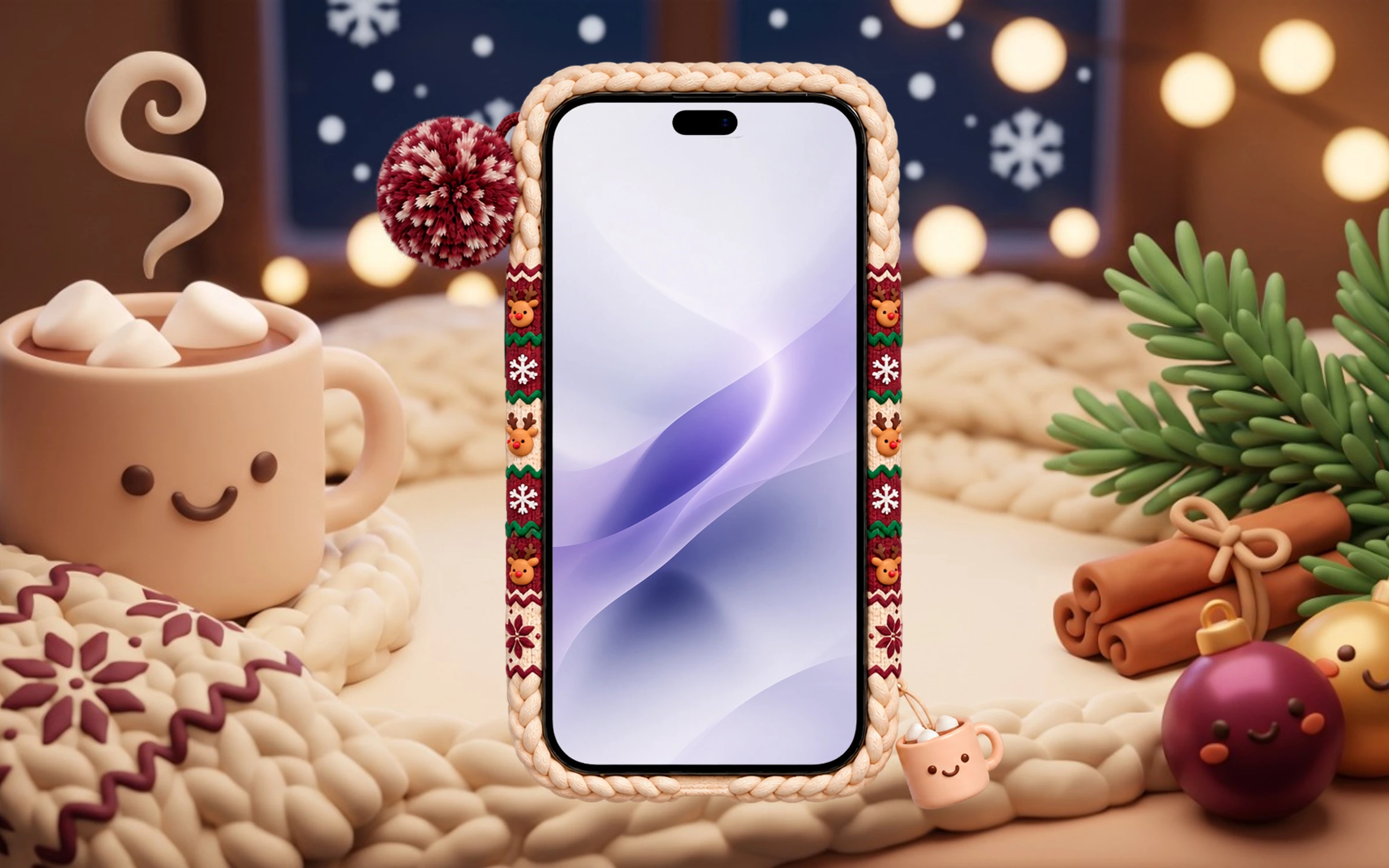
Three themes, each a case and a background made as a pair (same Pro Max screen ratio as the plain 18 Pro Max, Dynamic Island included):
| Theme | Case | Matching background |
|---|---|---|
| Polar Bear | Ice-blue case, a polar bear cub peeking over the corner, snow drifts | Arctic Aurora: polar bears under green and violet northern lights |
| Santa Lights | Glossy red case, fur trim, Santa hat, glowing bulb lights | Santa Night: Santa's sleigh over snowy rooftops, string-light bokeh |
| Cozy Knit | Chunky cartoon knit, smiling reindeer, pom-pom, cocoa mug charm | Cozy Cocoa: cartoon hot cocoa, knit blanket, fairy lights |
Christmas backgrounds for your iPhone mockup
Background → Seasonal: Arctic Aurora, Santa Night, Cozy Cocoa. Each keeps the center calm so the iPhone stays the focus, with the scene on the sides. Mix them freely: the Santa Lights case on Arctic Aurora works too.
Fast path: Designs → Christmas: ready-made Christmas templates that apply a case and its matching background in one tap.
Step 1: Open Designs and pick a Christmas look
- Open the Framy editor with the Polar Bear case + Arctic Aurora
- Open Designs → Christmas for Santa Lights and Cozy Knit
- Tap a card. Framy sets the case and background and centers the iPhone
Prefer picking pieces yourself: Devices → Special (each Christmas case is its own tile), then Background → Seasonal.
The screen hole matches the 18 Pro Max aspect ratio, so recordings and screenshots you already use for Pro Max listings drop in without stretching.
Step 2: Add your iPhone screen recording or screenshot
Upload a screenshot or a short screen recording of the flow you want to show. Fill the glass edge to edge. Decorations sit on the case the way a real case would, so you don't need to inset the UI yourself.
For a Christmas iPhone mockup video, upload a 10–20 second screen recording of one flow. For a still Christmas phone mockup, one strong screen is enough.
Step 3: Pick the theme that fits your brand
| Theme | Mood | Good for |
|---|---|---|
| Polar Bear | Calm, magical, cool | Premium apps, wellness, travel, soft holiday emails |
| Santa Lights | Classic, loud festive | Gift promos, shopping, social ads that stop the scroll |
| Cozy Knit | Warm, playful, cartoon | Consumer apps, food, kids, casual games, lifestyle |
Pick the one that matches your brand's energy, not the most festive one. A banking app in a cartoon knit case feels off; Polar Bear fits it better.
Step 4: Set the canvas for where it will live
| Destination | Canvas tip |
|---|---|
| Reels / Shorts / TikTok | 9:16, iPhone centered |
| App Store / ASA-style still | 1320×2868 (6.9") or 1206×2622 (6.3"), portrait |
| Blog / landing hero | 16:9 or square with room around the case |
| Ad feed | Match the placement size; keep UI readable at small thumb |
For placement sizes beyond the phone itself, see App Ad Creative Sizes.
Step 5: Export an iPhone mockup video (MP4) or image (PNG)
Export MP4 for motion or PNG for stills. Low-quality exports are free, and there's no watermark either way, which matters when the creative is public (ads, store, social). Preview once at phone size: if text looks thin, bump type in the app UI or crop tighter to the feature.
Tips for Christmas creatives that still look like your product
- Don't costume the UI. Red buttons everywhere fight the case. Let the frame and background do seasonal; keep the screen on-brand.
- One hero action. A holiday mockup is busy by design, so the glass should show a single clear job.
- Match the theme to the channel. Santa Lights and Cozy Knit work for consumer social; Polar Bear feels calmer for email and decks.
- Reuse your Pro Max captures. Same ratio as the plain 18 Pro Max frame means no re-record for the seasonal cut.
- Start early. App Review gets busier before the holidays, so approvals can take longer. Aim to have holiday App Store screenshots approved by mid-December.
- Plan the swap. Make the January version (plain frame, "New Year" message) at the same time, so you can switch on December 26 without a scramble.
When this approach wins
Use a Christmas iPhone demo video when the holiday is the hook: a gift offer, a winter skin, a December feature. Skip it when you're teaching a serious workflow (onboarding, B2B demo); a plain Pro Max or Duo frame stays clearer for those.
How this differs from our other seasonal guides
| Guide | Primary job |
|---|---|
| This post | Christmas cases + matching backgrounds for festive mockups |
| Halloween iPhone mockup | Spooky case + pastel Halloween look |
| Black Friday ad template | Sale ad layouts and Black Friday case for discounts |
Keep Christmas for festive product storytelling; use Black Friday when the offer is the sale.
FAQ
How do I make a Christmas iPhone mockup? Open Framy, go to Designs → Christmas (or Devices → Special for the Polar Bear, Santa Lights, or Cozy Knit case), pick a Seasonal background, drop in your screenshot or recording, and export PNG or MP4 with no watermark.
Can I make a Christmas iPhone mockup video? Yes. Upload a screen recording, pick a Christmas iPhone case and background, set the canvas to 9:16 for Reels, and export MP4.
Is the Christmas iPhone mockup free? Low-quality exports are free with no watermark. High quality uses a $1.99 pack of 30 exports, or $4.99 for 100. No subscription.
Which Christmas iPhone cases does Framy include? Three festive cases on the 18 Pro Max screen fit, each with a matching background: Polar Bear (ice blue with a bear cub, Arctic Aurora), Santa Lights (red with fur trim and bulb lights, Santa Night), and Cozy Knit (cartoon knit with a pom-pom, Cozy Cocoa).
Can I use a Christmas phone mockup for Reels and ads? Yes. Set the canvas to 9:16 for Reels and Shorts, or match your ad placement size. The case and holiday background stay on the frame so your app UI stays readable.
How is this different from the Black Friday ad template? Christmas is for festive product storytelling with holiday cases and backgrounds. Black Friday is for sale ad layouts and discount messaging. Use each when that is the hook.
Next steps
Make yours in the Framy editor with the Polar Bear case + Arctic Aurora, or open Designs → Christmas, drop your screen, and export. For everyday framing without the costume, start from the iPhone mockup video editor or the free iPhone mockup. More guides on the Framy blog.